


Microsoft Edge
4.741.38K Reviews
App Specs
- Version
- 149.0.4022.105
- Updated On
- License
- Free
- Downloads
- 100,000,000+
- Developer
- Microsoft Corporation
- Categories
- Communication
- Platform
- Android, iOS
Screenshots
 Analysis by AppCompare
I think the strongest case for Microsoft Edge is that it tries to make everyday browsing more useful without asking you to abandon the familiar browser routine. You still open pages, move between tabs, and save things for later; the difference is the extra layer of AI and built-in organization. That mix makes it worth a look if you want more than a bare-bones browser, though it won’t be the best fit for everyone.
Where the extra tools earn their place
Edge is a free communication app from Microsoft Corporation, rated for Everyone. Its average rating is 4.7 from around 1.5 million ratings, and it has over 100 million installs. Those figures suggest it has reached a broad audience, but what matters more in daily use is whether its added features solve a problem you actually have.
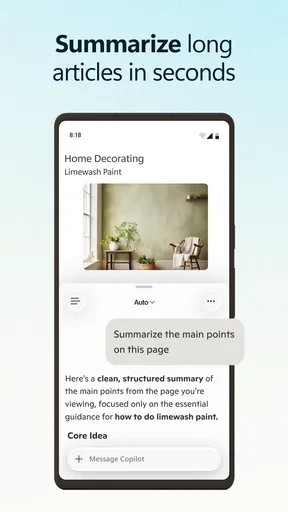
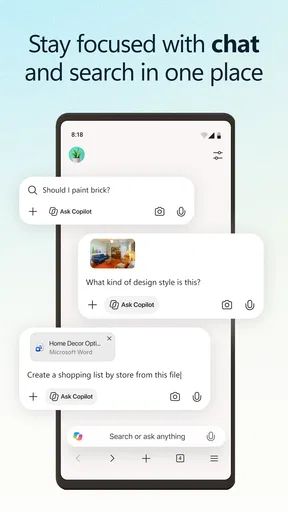
Copilot is part of the app’s AI direction, and the practical appeal is having assistance available while you browse rather than treating the browser as only a way to open links. I’d approach it as an optional helper, not a reason to trust every generated answer without checking. For something consequential, I still look at the original page and compare sources; AI can make reading and exploring more convenient, but it doesn’t remove the need for judgement.
Guides and Analysis on Microsoft Edge
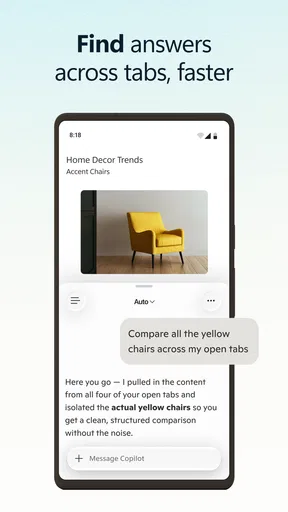
A useful way to try this is to start with a task you already do online. If you are comparing a few products, for instance, keep the relevant pages open and use the browser’s available shopping help as a prompt to investigate further. Check the details on the retailer’s own page before deciding: prices, delivery terms, and product specifications can differ, and an assistant’s suggestion should not replace that final check.
Translation is valuable in a different way. When I land on a page in a language I don’t read, having translation in the browser can be easier than copying passages into a separate tool. It helps me get the gist of an article and decide whether I need to dig deeper. For precise wording, specialist material, or anything where a subtle distinction matters, I would still compare the translation with the source rather than treating it as definitive.
A browser that rewards a little setup
The first-run experience is presented as straightforward, and the familiar layout helps reduce the learning curve. Edge is currently at version 143.0.3650.112, but the more useful choice for a new user is not a version number: it is which parts of the browser to make your own. Spend a moment on the appearance and privacy options, then keep only the tools you expect to use. A browser can feel cluttered when every available feature is left competing for attention.
Collections can be more useful than a simple pile of bookmarks when a task involves several kinds of material. For example, while planning a trip, I might save a lodging page, a map-related page, and a few notes or useful snippets together, then return to them as one group instead of searching through a long bookmarks list. The trade-off is that this extra organization only pays off if you remember to file things as you go. If you save a page once and never revisit it, an ordinary bookmark may be quicker.
Worth Reading Before You Choose

QuizzLand Review: A Good Fit for Short Trivia Breaks, Not Every Player

Basketball Stars: Multiplayer Is Fast, but Can It Recover When Matches Go Wrong?

WEBTOON Turns Phone Updates Into a Better Reading Routine

Link to Windows Runs on Shared Habits, Not Social Feeds

How Alibaba.com Dominates the B2B Marketplace

Harnessing Ecosystem Power with Phone Tracker by Number
Speed, compatibility, and the real trade-offs
Edge uses Chromium, which is a practical advantage when a site is built with mainstream browser compatibility in mind. It also makes the move from another Chromium-based browser less of a leap. In normal browsing, switching between a few open pages, watching video, and reading should feel familiar rather than like learning a new system. Still, performance depends on the pages and extensions you use, so I would not take a general impression of speed as a guarantee that every setup will behave identically.
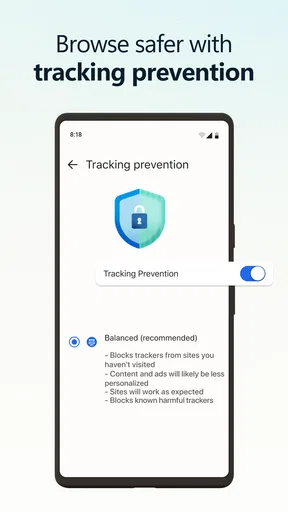
Privacy controls are another area where a small decision can make a noticeable difference. Tracking prevention lets you choose between levels, so you can decide how much protection you want rather than accepting a single fixed setting. A stricter choice may affect how some sites behave, so if a page stops working as expected, I’d check the privacy setting before assuming the site itself is broken. That adjustment is a useful troubleshooting step, not a reason to turn protection off everywhere.
There are limits to the all-in-one approach. AI features are not essential for someone who wants a plain, fast way to open websites, and the extra options can feel like noise if you prefer a minimal browser. Shopping suggestions also do not replace careful comparison, while translation is best treated as a reading aid when accuracy matters. If your current browser already fits your habits and you rarely use these tools, switching may bring more setup than benefit.
First Impressions
As soon as you fire up Microsoft Edge, you’ll notice its clean and intuitive interface. It feels familiar if you've used other browsers, yet it offers a refreshing blend of simplicity and functionality. The initial setup is a breeze, guiding you through personalized settings to tailor the browsing experience to your liking. Whether you’re a fan of dark mode or prefer a minimalist layout, Edge has got you covered.
The AI Advantage
Now, let's talk about the real superstar feature: AI integration. One of the most remarkable aspects is the AI-powered shopping assistant. Imagine browsing for a new gadget and having an intelligent assistant pop up to suggest better deals or compare prices across platforms. It’s like having a savvy shopping buddy right at your fingertips!
Another nifty AI feature is the language translation tool. It seamlessly translates web pages in real-time, making it incredibly handy for those moments when you stumble upon a fascinating article in a language you don’t speak. It's smooth, quick, and feels almost magical.
Performance and Speed
Performance-wise, Edge doesn’t disappoint. It runs on the Chromium engine, ensuring compatibility with most web standards and extensions. The speed is impressive too. Pages load swiftly, and the browser handles multiple tabs like a pro. Whether you’re streaming videos or juggling between several tasks, Edge keeps up without breaking a sweat.
User-Friendly Features
Edge packs in several user-friendly features that make browsing a delight. The Collections feature is particularly noteworthy. It allows you to organize and save web pages, images, and text snippets effortlessly. It's perfect for planners, researchers, or anyone who loves to keep things tidy and accessible.
The browser also offers a robust set of privacy tools. With tracking prevention, you can choose from different levels of privacy settings. It’s reassuring to know that your browsing habits aren’t being tracked all over the web.
Final Thoughts
So, what’s the verdict on Microsoft Edge? It's a browser that blends traditional browsing with intelligent features that truly elevate the user experience. Whether you're a tech enthusiast or someone who just wants a reliable browser, Edge ticks all the boxes.
If you haven't tried it yet, give it a whirl. It might just become your new favorite way to surf the web. And remember, with AI on your side, the internet is your oyster!
How I’d fit it into a normal day
Picture a weekday morning: I open a few work pages, check an article someone sent, and leave a couple of tabs for later. At lunch, I find a useful page in another language; translation lets me decide whether it is worth reading closely. In the evening, I compare a product and save the pages I want to revisit. Edge’s value in that routine is not one dazzling feature, but fewer small interruptions: I can read, organize, and continue without bouncing between as many separate tools.
That workflow also reveals a practical limit. If I leave dozens of tabs open, browser organization matters more than AI. Collections can help me keep research together, but they do not automatically make an untidy session manageable. I get better results by saving the pages that belong to a project and closing the ones I no longer need. This is a small habit, but it keeps the browser from turning into a temporary storage space I never clean up.
Who should choose it—and who may not need it
I’d recommend Edge to people who read across languages, shop online with care, or collect sources while planning and researching. It is also a sensible option for someone who likes Chromium compatibility but wants built-in tools for saving material and exploring AI assistance. The app is free to install, though it includes in-app purchases listed from $9.99 to $199.99 per item; I would check what a purchase covers before committing rather than assuming the core browsing experience requires one.
On the other hand, I would not urge a happy user of another browser to switch just because Edge includes AI. If you depend on a particular browser’s established workflow, extensions, or sync habits, compare those needs first and try Edge alongside your current choice before making it your default. People who want the fewest possible prompts and features may prefer a more stripped-down alternative. Edge’s strength is breadth, and breadth inevitably means more choices to manage.
How it sits beside familiar alternatives
Compared with a basic browser, Edge puts more emphasis on integrated assistance, translation, shopping support, and collecting research. Compared with another Chromium-based option, its underlying compatibility makes the browsing feel familiar, while its appeal depends on whether Microsoft’s built-in tools suit your habits. A browser centered on a simpler interface may be calmer; one already tied to your preferred services may be more convenient. I would choose based on the work I actually do online, not on the promise that one browser is universally faster or smarter.
For privacy-minded readers, the adjustable tracking prevention is useful, but it is not a substitute for thinking about what information they share on websites or with online assistants. I’d review the privacy controls during setup, choose a level that fits my comfort, and revisit it if a site behaves oddly. That gives me a more realistic balance than assuming a browser setting makes every part of browsing private.
My final recommendation
Microsoft Edge is a capable everyday browser with a clear identity: it combines familiar web access with AI-oriented help and practical ways to keep useful material close. Its average rating and broad adoption are reassuring context, not proof that it will match every person’s preferences. I’d install it if translation, research organization, or browser-based assistance would genuinely save me effort; I’d skip a switch if I already have a browser that handles those needs with less friction.
Microsoft Edge was released on November 29, 2017, and its current version is 143.0.3650.112. Those details matter less than the simple test I’d use before settling in: try it for a few real tasks, including one that involves saving pages and one that calls for translation or AI help. If the tools feel natural rather than distracting, it is an easy browser to keep around. If they do not, there is no reason to change a routine that already works.
Pros
- Seamless integration with Microsoft services.
- Built-in AI features enhance browsing.
- Customizable interface for user preferences.
- Strong privacy and security controls.
- Fast page loading speeds on most sites.
Cons
- Limited extension library compared to Chrome.
- May consume more RAM with multiple tabs.
- Occasional compatibility issues with sites.
- Some features require a Microsoft account.
- AI features can be overwhelming for some.
FAQs for Microsoft Edge
What makes Microsoft Edge different from other browsers?
Microsoft Edge stands out due to its integration with AI-powered tools like Bing Chat and Microsoft Copilot, which enhance productivity by offering intelligent search and personalized browsing experiences. Its features such as vertical tabs, collections, and immersive reader mode also contribute to a more organized and user-friendly browsing experience.
Is Microsoft Edge available on both Android and iOS devices?
Yes, Microsoft Edge is available for download on both Android and iOS platforms. This allows users to enjoy a seamless browsing experience across different devices, with features like sync capabilities that keep your bookmarks, passwords, and settings consistent whether you're on a mobile device or desktop.
How does Microsoft Edge ensure user privacy and security?
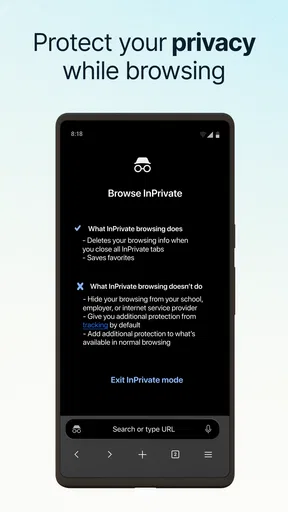
Microsoft Edge prioritizes user privacy and security with features like tracking prevention, InPrivate browsing, and Microsoft Defender SmartScreen. These tools help to block trackers, prevent unauthorized data collection, and protect against malicious websites, ensuring a safer browsing environment for users.
Can Microsoft Edge be customized to suit individual preferences?
Absolutely, Microsoft Edge offers extensive customization options. Users can personalize their homepage, choose between light or dark themes, and install a variety of extensions to enhance functionality. This flexibility allows users to tailor their browsing experience to meet their specific needs and preferences.
Does Microsoft Edge support extensions, and how can they be installed?
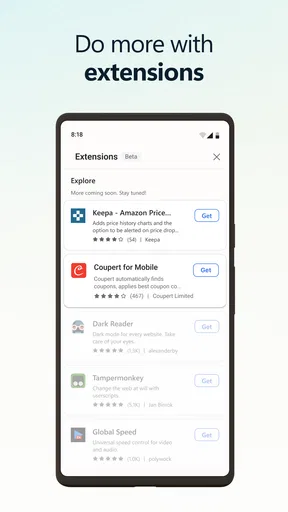
Yes, Microsoft Edge supports a wide range of extensions that can be easily installed from the Microsoft Edge Add-ons store. These extensions add extra functionality and features to the browser, enhancing the user experience by providing tools for productivity, entertainment, and more. Simply navigate to the extensions menu and search for desired add-ons.


